

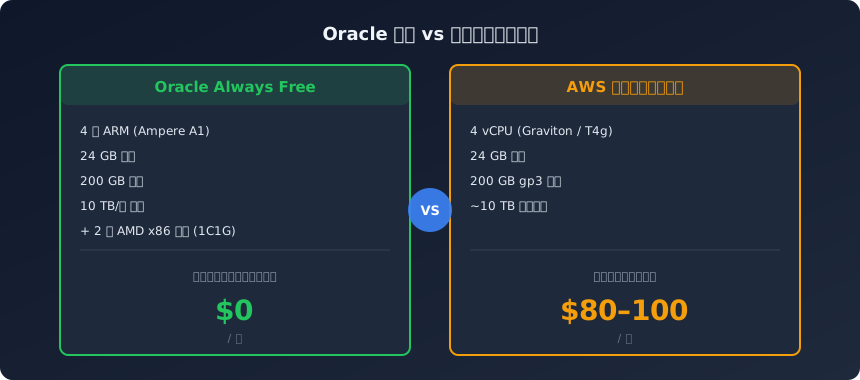
Oracle’s Always Free plan gives you a 4-core, 24 GB ARM server every month — no expiry, no charge. The same specs cost $80–100/month on AWS. This post strings together signup, pitfalls, instance creation, and keep-alive.
What You Get#
Oracle’s free tier is called Always Free. Not a trial, not a limited-time promo.
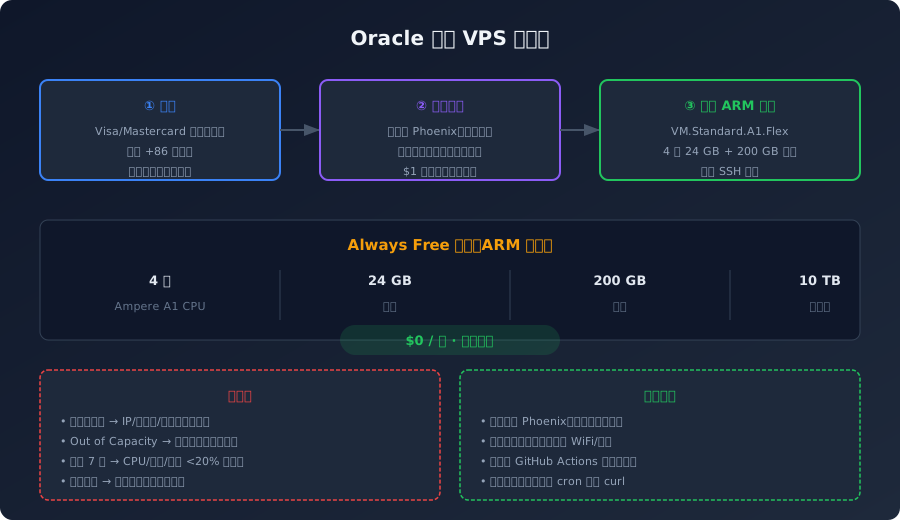
The core resource is an ARM virtual machine:
| Resource | Spec |
|---|---|
| CPU | 4 cores (Ampere A1) |
| Memory | 24 GB |
| Storage | 200 GB |
| Monthly egress | 10 TB |
| Price | $0, forever |
Oracle meters by hours: 3,000 OCPU hours + 18,000 GB memory-hours per month, exactly enough to allocate one 4-core 24 GB machine. It also comes with 2 small AMD x86 machines (about 1 core / 1 GB each) to use as spares or for light tasks.
Three Things to Prepare Before Signing Up#
A physical credit card: Visa or Mastercard logo — China Merchants Bank, ICBC, Bank of China, and SPDB all work. Virtual and prepaid cards are not accepted. About $1 is charged for verification when you bind the card and refunded within a few days.
An email address and phone number: a mainland +86 number works as-is.
Proxy off, switch to your phone’s hotspot: Oracle checks whether your IP’s origin matches your credit card’s issuing country. A proxy turns your IP into another country’s, and verification fails outright.
A Checklist for Signup Failures#
A red exclamation mark after submitting most likely means the IP origin, the card’s issuing country, and the billing address don’t line up.
The rules when registering with a Chinese credit card:
- IP from China (phone hotspot, no proxy)
- A Visa/Mastercard issued in China
- A Chinese billing address
When the exclamation mark appears, check item by item:
- Is the VPN/proxy fully off?
- Are you on a phone hotspot rather than WiFi?
- Is the card physical (not virtual, not prepaid)?
- Is the billing address in China?
- Tried the same card more than twice? Stop — switch cards or wait 2–3 days
This is the community’s reverse-engineered risk-control pattern; Oracle has never said anything officially. But working through this checklist does raise the success rate considerably.
The Region Can’t Be Changed Later — Stop and Think It Through#
During signup you pick a “Home Region”, and it cannot be changed afterward.
Popular regions have brutal competition for ARM instances; free accounts rarely grab one.
| Region | Advice |
|---|---|
| Phoenix (US) | First choice, low competition |
| Mumbai (India) | Backup option |
| Jakarta (Indonesia) | Backup option |
| Tokyo / Seoul / Singapore | Hard to grab ARM; only if you have hard latency requirements in Asia |
Running a server isn’t gaming — latency isn’t the top priority; actually getting the machine is. Phoenix recommended.
The Signup Process#
Once you’re ready, open a private browser window.
- Open the signup page: go to oracle.com/cloud/free and click the start-for-free button
- Fill in basic info: country China, name in pinyin, your email, then verify via the confirmation link
- Set password and account type: 8+ characters with upper/lowercase, digits, and special characters; Customer type: Individual
- Pick the home region: choose US West (Phoenix) from the dropdown
- Fill in the address: the English address matching your credit card billing
| |
- Enter your phone number: +86 plus your number, receive the code
- Bind the credit card: enter card details and submit. A $1 pre-auth, refunded within a few days
Landing on the welcome page means success. A red exclamation mark means work through the checklist above.
Creating the ARM Instance#
Log in to the console and go to Compute → Instances → Create Instance.
The key choices:
- Image: Ubuntu 22.04, the one tagged “Always Free Eligible”
- Shape: VM.Standard.A1.Flex, set to 4 cores / 24 GB
- Storage: custom boot volume, 200 GB
- SSH key: upload the
.pubpublic key file
No SSH key? One command in a Mac/Linux terminal:
| |
On Windows, use the ssh-keygen bundled with Windows Terminal, or PuTTYgen. Upload the generated oracle_key.pub.
Click Create, wait a few minutes, and once the status turns green it’s up and running.
What If It Says Out of Capacity#
Seeing “Out of Capacity” isn’t your mistake — the region’s ARM pool is temporarily full.
Manual refreshing has a very low success rate. The community has auto-grab scripts that retry every few dozen seconds and create an instance the moment capacity frees up:
- GitHub Actions edition (runs on GitHub, no computer to leave on): oci-free-arm-instance
- Python edition: oracle-freetier-instance-creation
Usually succeeds within hours to a few days. Just let the script run.
Keep-Alive: Don’t Let the Machine Get Reclaimed#
Oracle checks for idle instances. If CPU, memory, and network utilization stay below 20% for 7 straight days, it may reclaim the machine (per the latest official policy; the threshold has been adjusted historically).
The simplest approach — a lightweight request on a cron timer:
| |
The community also has scripts like NeverIdle, but third-party scripts can break — if Oracle updates its detection, they may stop working.
Once you’re running real services on the server, you won’t need any of this. The ZRAM compression setup (https://blog.baifan.site/en/zram-memory-optimization-linux/) is also practical for low-memory situations and pairs well with it.
Is It Worth the Time#
A free 4-core 24 GB server is plenty for personal projects and small teams. Signup itself isn’t complicated — physical credit card + proxy off + phone hotspot + Phoenix region, and you’ll likely pass on the first try.
The only thing that takes patience is waiting for ARM capacity. Let a script keep watch instead of refreshing yourself.
For how to configure the server and what to install once you have it, see the VPS scene glossary (https://blog.baifan.site/en/vps-glossary-jargon-guide/) and the self-hosted AI API pipeline (https://blog.baifan.site/en/self-hosted-ai-api-pipeline/).
