

You SSH into a server to run a long task, the network drops, and the task is gone. Tmux exists to solve exactly this — it decouples the terminal session from the window, so the process keeps running after you close the terminal.
The Core Problem It Solves#
An ordinary terminal window is bound to its processes. Close the window and the processes die. Same story when SSH drops.
Tmux decouples the session from the window: close the terminal or lose SSH, and the processes inside the session keep running. Reattach later, and everything is as you left it.
GNU Screen is the other tool in this category. Tmux is easier to use and does more — there’s little reason to pick Screen.
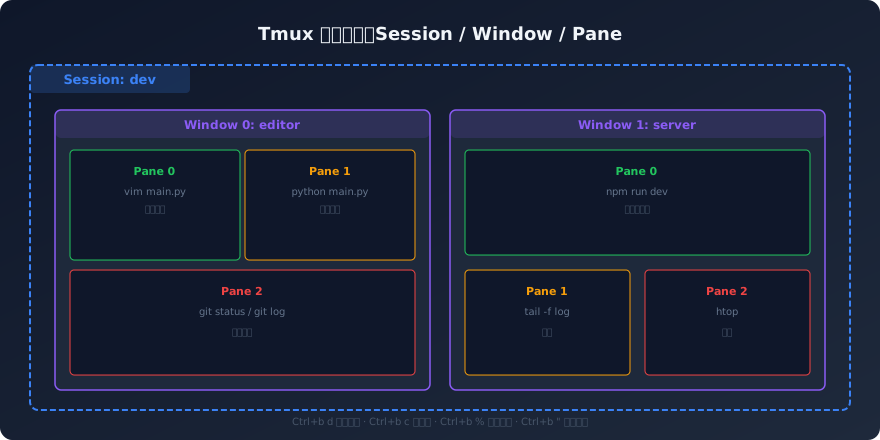
The Three Layers#
Tmux has three layers; get them straight and you’ll never feel lost:
- Session: the outermost container. A session can hold multiple windows. After detaching, the session keeps running in the background.
- Window: tabs within a session; the status bar at the bottom shows their numbers and names.
- Pane: split regions inside a window; each pane runs its own command.
In daily use, one session per project, with windows and panes split as needed.
Installation#
| |
Session Operations#
These few commands cover 80% of daily use:
| |
Session shortcuts:
| Shortcut | Action |
|---|---|
Ctrl+b d | Detach the current session |
Ctrl+b s | List all sessions |
Ctrl+b $ | Rename the current session |
Pane Splitting#
Slice one window into pieces and watch several commands’ output at once.
| |
Common pane shortcuts:
| Shortcut | Action |
|---|---|
Ctrl+b % | Split left/right |
Ctrl+b " | Split top/bottom |
Ctrl+b arrow keys | Switch between panes |
Ctrl+b z | Zoom/restore |
Ctrl+b x | Close pane |
Ctrl+b q | Show pane numbers |
Ctrl+b Ctrl+arrow keys | Resize pane |
Window Management#
Multiple windows inside a session — like tabs in a terminal.
| Shortcut | Action |
|---|---|
Ctrl+b c | New window |
Ctrl+b n | Next window |
Ctrl+b p | Previous window |
Ctrl+b 0-9 | Jump to window by number |
Ctrl+b w | Pick a window from a list |
Ctrl+b , | Rename window |
A Real Workflow#
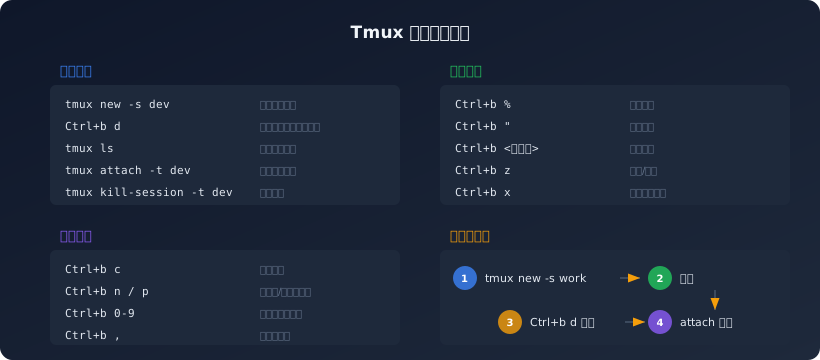
A typical development scenario:
| |
For long-running tasks on an Oracle free VPS (https://blog.baifan.site/en/oracle-free-vps-guide/), tmux is basically mandatory — when SSH drops, the processes must not drop with it.
Pair it with SSH remote development (https://blog.baifan.site/en/codex-ssh-remote-development-guide/) and the VPS jargon primer (https://blog.baifan.site/en/vps-glossary-jargon-guide/), and you’ve got the basics of working on remote servers covered.
Configuration File (Optional)#
The defaults are fine. To change the prefix key or add mouse support, create ~/.tmux.conf:
| |
Apply the changes:
| |
This is personal taste — it works fine without any of it. For most people, adding set -g mouse on is enough.
